
Suggester System
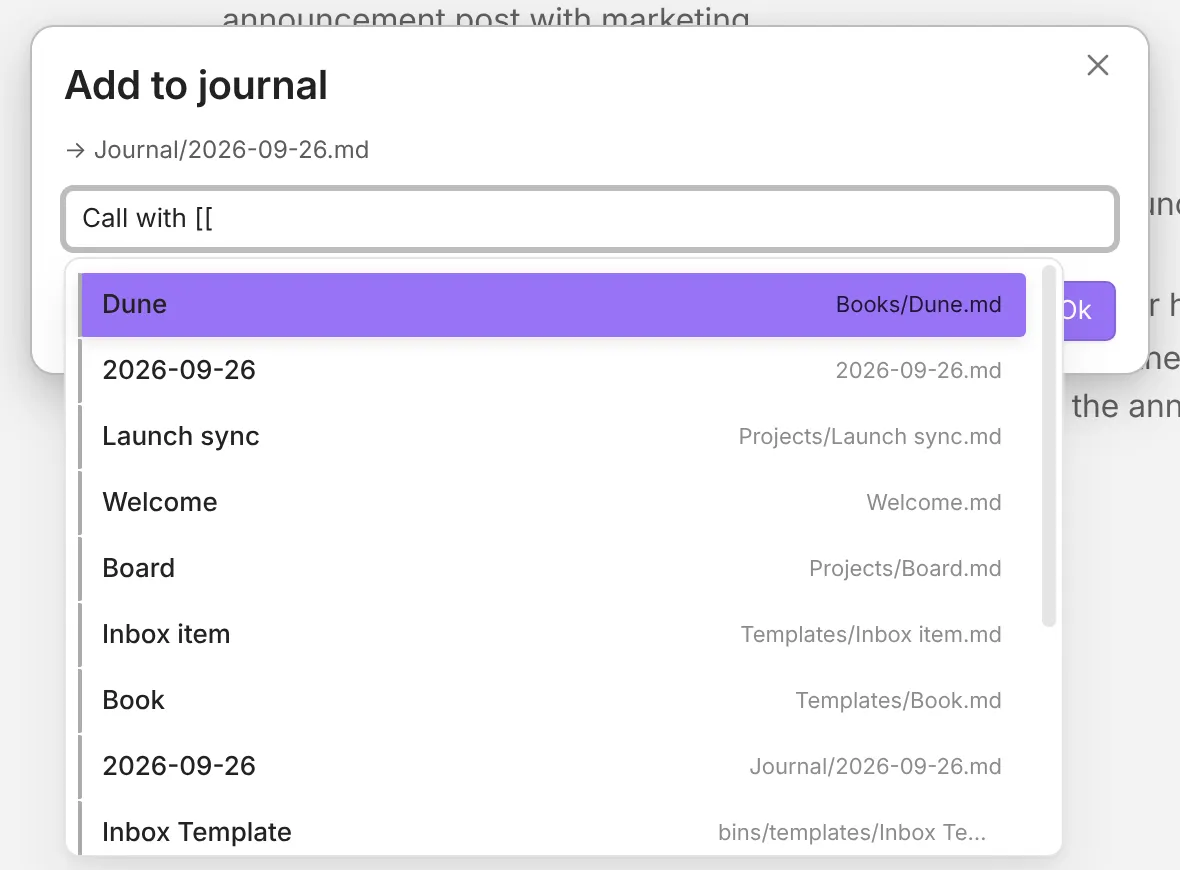
When a QuickAdd prompt asks you for text, you don’t have to type a file name or
tag from memory. Start typing a trigger like [[ and QuickAdd shows a
searchable list of matches, exactly like Obsidian’s own link and tag
autocomplete. Pick one, and QuickAdd drops it in where you were typing.
What you can search for
Section titled “What you can search for”Type one of these triggers anywhere in a prompt:
| Type this | To search |
|---|---|
# |
Every tag in your vault |
[[ |
Every file in your vault |
[[# |
Every heading in your vault |
[[#^ |
A specific block |
Search your tags: #
Section titled “Search your tags: #”Type # to search every tag in your vault, then pick one.
Search your files: [[
Section titled “Search your files: [[”Type [[ to search every file in your vault. A file shows its name, or the
alias you matched, with its path beside it. Links to notes that don’t exist yet
are listed too, marked Unresolved link.
Search a nearby folder: ./ and ../
Section titled “Search a nearby folder: ./ and ../”Narrow a file search to a folder near the current note:
./searches the folder the current note is in.../searches the parent folder.
Jump to a heading: [[#
Section titled “Jump to a heading: [[#”Type [[# to search every heading in your vault and link straight to it.
Link a specific block: [[#^
Section titled “Link a specific block: [[#^”Type [[#^ to find and link an individual block.
Keyboard shortcuts
Section titled “Keyboard shortcuts”You can drive the suggester entirely from the keyboard:
| Key | Action |
|---|---|
↑ / ↓ |
Move up and down through the suggestions |
Enter |
Pick the highlighted suggestion |
Escape |
Close the suggester without picking |
The list wraps around: pressing ↓ on the last item jumps back to the first.